Introduction
Live streaming your event on platforms like Twitch is no longer a novelty – it’s a mainstream expectation. As of 2025, roughly 28.5% of all internet users watch live streams at least weekly, according to data on live streaming usage trends. Major events have harnessed this trend to reach audiences far beyond the venue. For example, Japan’s Fuji Rock Festival 2025 achieved an unprecedented global viewership through streaming partnerships, broadcasting free on Amazon Music and Twitch to fans worldwide, as detailed in reports on the summer of streaming. Even festivals like Coachella have drawn tens of millions of online viewers via live streams, demonstrating how technological innovations create better event experiences and proving that virtual attendees can far outnumber those on-site. Whether you’re organizing a music festival, business conference, e-sports tournament, or any live gathering, streaming it on Twitch can massively amplify your reach and let remote fans experience the action in real time.
If you are wondering how to live stream an event professionally, the secret lies in treating the digital broadcast with the same rigor as your physical stage. Whether you hire a dedicated event streamer or train your in-house AV team, mastering the technical requirements ensures your remote attendees get a front-row experience.
Introduction
Live streaming your event on platforms like Twitch is no longer a novelty – it’s a mainstream expectation. As of 2025, roughly 28.5% of all internet users watch live streams at least weekly, according to data on live streaming usage trends. Major events have harnessed this trend to reach audiences far beyond the venue. For example, Japan’s Fuji Rock Festival 2025 achieved an unprecedented global viewership through streaming partnerships, broadcasting free on Amazon Music and Twitch to fans worldwide, as detailed in reports on the summer of streaming. Even festivals like Coachella have drawn tens of millions of online viewers via live streams, demonstrating how technological innovations create better event experiences and proving that virtual attendees can far outnumber those on-site. Whether you’re organizing a music festival, business conference, e-sports tournament, or any live gathering, streaming it on Twitch can massively amplify your reach and let remote fans experience the action in real time.
If you are wondering how to live stream an event professionally, the secret lies in treating the digital broadcast with the same rigor as your physical stage. Whether you hire a dedicated event streamer or train your in-house AV team, mastering the technical requirements ensures your remote attendees get a front-row experience.
Grow Your Social Following With Every Sale
Require social media follows, shares, or playlist adds to unlock presale access or special pricing. Turn every ticket purchase into audience growth.
But a successful Twitch stream requires more than just hitting the “Go Live” button. It involves technical setup, audience engagement, and careful planning to deliver a smooth, professional broadcast. In fact, hybrid events – with both in-person and online components – have become so popular that about 40% of event attendees now prefer having a virtual option alongside the live experience, a trend highlighted in discussions on hybrid event technology. Meeting that demand means ensuring your stream is high-quality, interactive, and reliable. From first-hand experience, event producers have learned that meticulous preparation for festival and event ticketing is key – any glitch in audio, video, or connectivity will be immediately visible to viewers and can undermine your event’s reputation.
Beyond massive music festivals, corporate organizers are increasingly utilizing platforms like Twitch for hybrid B2B gatherings, virtual panels, and even a large-scale Twitch video conference. By simulcasting across multiple platforms—including dedicated YT events (YouTube Live)—producers can capture distinct audience demographics, ensuring maximum ROI for sponsors and stakeholders.
Ready to Sell Tickets?
Create professional event pages with built-in payment processing, marketing tools, and real-time analytics.
This comprehensive guide walks you through every step to set up and stream your live event on Twitch successfully. We’ll cover account setup, streaming software, hardware and internet requirements, stream configuration, overlays and alerts, audience interaction strategies, testing and rehearsals, promotion, and post-event follow-up. By following these best practices – backed by industry data, expert tips, and lessons learned from real events – you can confidently showcase your event to a global audience with professionalism and flair.
1. Create and Set Up Your Twitch Account
Before you can stream, you’ll need a dedicated Twitch account for your event (or your brand/organization). Setting up your account properly lays the foundation for a secure and branded streaming experience:
- Sign Up for Twitch: Go to Twitch.tv and create an account if you haven’t already. Use an official email and choose a username that represents your event or organization. For example, an event called Global Music Summit should secure a handle like
GlobalMusicSummitLiveif possible. Keeping the name consistent with your branding makes it easier for fans to find you. - Complete Your Profile: Brand your channel with a custom profile picture (logo), banner image, and a bio or description that explains what you’ll be streaming. This is where you communicate your event’s identity. Include links to your website or event page for credibility. A polished profile page instantly signals professionalism and helps build trust with viewers who land on your channel.
- Enable Two-Factor Authentication: Twitch requires 2FA for streamers – and for good reason. It adds an extra layer of security to protect your account from unauthorized access. Set up 2FA via Twitch settings (you’ll typically link your phone number to receive verification codes). This prevents someone else from hijacking your channel, which is critical if you’re promoting the stream widely. Pro Tip: Treat your Twitch Stream Key like a password – never share it publicly. Anyone with your stream key could potentially broadcast on your channel, so keep it secure.
- Find Your Stream Key: The Stream Key is a unique code that connects your streaming software to your Twitch channel. In your Twitch dashboard, go to Settings > Stream to locate it. Copy this key only into your streaming software (OBS, etc.) when prompted. If you suspect it’s been compromised, you can reset it in the Twitch settings. Never display this key on screen or in a live demo.
- Check Platform Settings: Within your Twitch account settings, take time to configure privacy and interaction options in advance. For instance, decide if you want to enable chat moderation tools (like blocked words or follower-only chat) to keep your stream’s community safe. If you anticipate thousands of viewers, enabling Slow Mode (which limits how frequently each user can send messages) can make chat easier to follow. These settings ensure that once you go live, the experience is positive and well-managed.
Finally, ensure you’re using updated software when setting up. Twitch works best on modern web browsers and systems. If you’ll be managing the stream through the browser interface (for chat or monitoring), use the latest version of Chrome, Firefox, or Edge. An outdated browser or OS can cause compatibility issues with Twitch’s interface. Likewise, update your graphics drivers if you’re using a PC for streaming – outdated drivers can affect video encoding performance. Starting with a fully updated system will spare you technical headaches down the line.
2. Choose Your Streaming Software
To broadcast your event on Twitch, you need streaming software (also called an encoder) that transmits your video and audio feeds to the platform. The software you choose will connect to your cameras, microphones, and other media sources, then send that composite stream out to Twitch. There are several popular options, each with its own features and advantages:
Data-Driven Event Marketing
Track ticket sales, demographics, marketing ROI, and social reach in real time. Exportable reports give you the insights to make smarter decisions.
- OBS Studio (Open Broadcaster Software): A free, open-source program used by countless streamers from beginners to pros. OBS is highly customizable – you can set up multiple scenes, add various sources (cameras, audio, slides, etc.), and tweak settings extensively. It’s a reliable workhorse and has a large community for support. Example: many small festivals and conferences use OBS because it’s cost-effective and powerful once configured.
- Streamlabs OBS (now just called Streamlabs Desktop): Built on OBS code, Streamlabs offers a more user-friendly interface and comes with integrated features like chat widgets, event lists, and donation alerts. It’s great if you want an all-in-one solution with lots of ready-made themes and overlays for Twitch. For instance, a gaming tournament might use Streamlabs to easily display follower notifications or on-screen chat without custom setup.
- XSplit Broadcaster: A veteran in the streaming software space, XSplit has both free and paid versions. It’s praised for its polished interface and some advanced features like simulcasting (streaming to multiple platforms at once) and higher-end audio/video mixing tools. If you’re willing to invest in a premium tool and want dedicated support, XSplit is a solid option. Some professional streamers and event organizers prefer XSplit for its ease of use in complex productions.
- Twitch Studio: Twitch’s own broadcasting app, ideal for newcomers. It’s still in (or just out of) beta as of 2026, but very accessible – offering step-by-step setup wizards, built-in layouts, and chat integration. If you’re feeling overwhelmed by OBS or XSplit, Twitch Studio can get you streaming quickly with minimal configuration, though it’s less flexible than OBS or Streamlabs.
- Professional Production Software/Hardware: For high-end productions (think large-scale concerts or multi-camera sports events), some organizers use enterprise-grade solutions like vMix, Wirecast, or hardware encoders/switchers (e.g., NewTek TriCaster or Blackmagic ATEM). These can handle numerous video inputs, graphics, and live edits. If you’re hiring a production crew, they might bring their own pro gear and just feed the output into Twitch. This level of setup is usually beyond DIY, but it’s good to know it exists if your event grows.
Each software has its nuances, so spend time learning the one you pick. OBS Studio, for example, has countless YouTube tutorials and a supportive forum where you can learn about adding overlays or fixing audio sync issues. Streamlabs has an extensive library of one-click widgets (for alerts, chats, etc.) that you might utilize. It’s wise to do a dry run with your software before the big event – stream a test feed to a private Twitch test channel or use Twitch’s “Inspector” tool – to ensure you’re comfortable with starting/stopping the stream, switching scenes, and managing sources on the fly.
3. Set Up Your Hardware for Streaming
The quality of your live stream will only be as good as the hardware feeding into it. Professional streamers and event producers know that investing in the right gear can dramatically improve the viewer experience. Let’s break down the key equipment and setup considerations:
Grow Your Events
Leverage referral marketing, social sharing incentives, and audience insights to sell more tickets.
Cameras and Audio Equipment
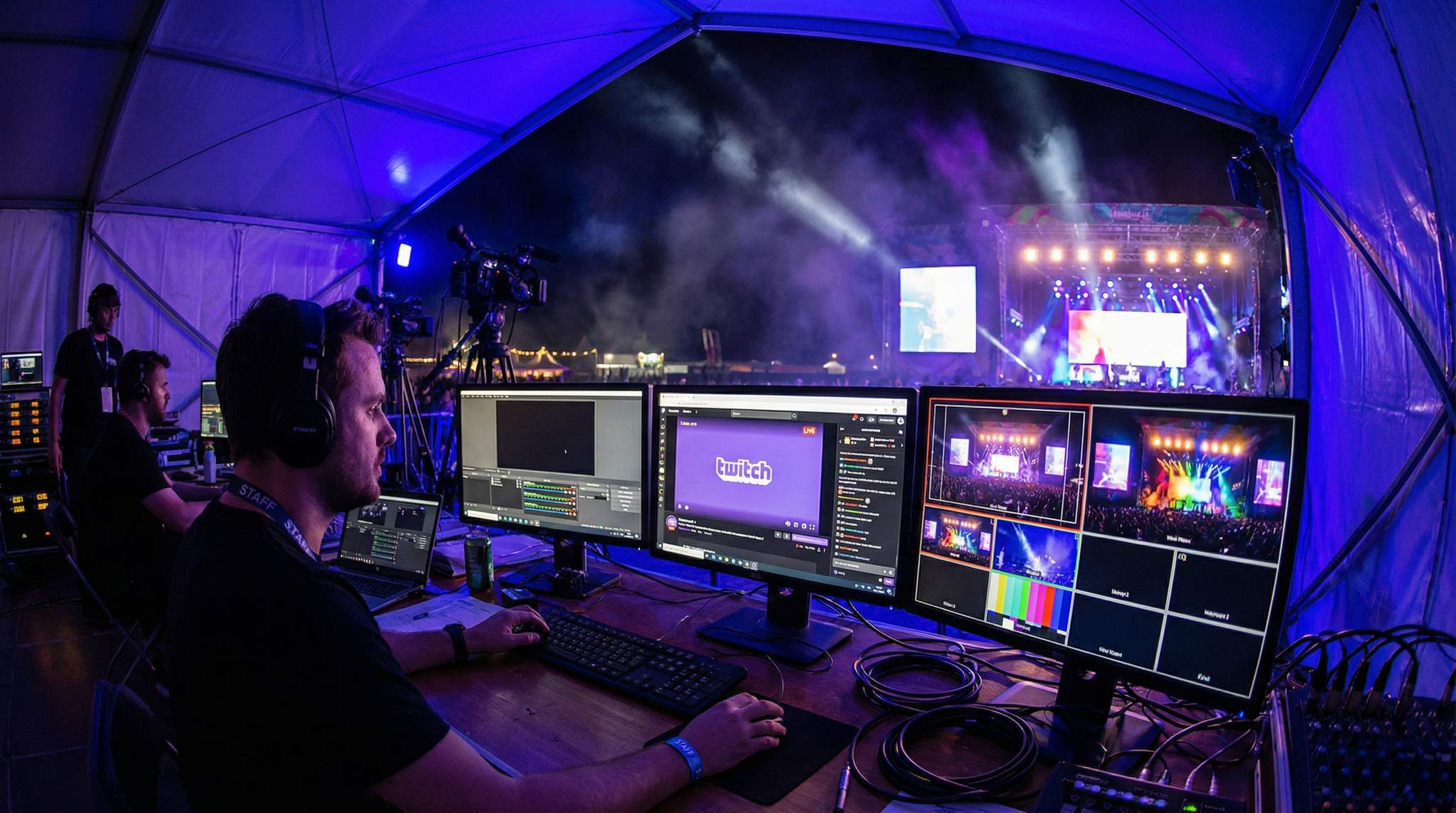
- Cameras: You can stream with anything from a smartphone to a professional cinema camera – but aim for the highest quality you can reasonably manage. For most events, at least one 1080p HD camera is essential (many stream in Full HD at 1920×1080 resolution). If you have multiple cameras (e.g. wide shot, close-ups, backstage view), you’ll need either a hardware switcher or to set them up as multiple sources in your streaming software. For instance, a music festival might use three cameras: one on the stage, one roving in the crowd, and one on the DJ – switching between them to keep the stream dynamic. Ensure each camera has a clean HDMI or SDI output if you plan to feed it into an encoder or capture card. Pro Tip: If you’re a one-person operation, start with one good camera and a tripod. Multi-camera setups are fantastic but require coordination (or an assistant to switch angles via OBS or a hardware controller) to avoid chaotic footage.
- Microphones: Crisp audio is even more important than video for viewer satisfaction – an audience will tolerate slightly grainy video, but not inaudible or crackling sound. Use high-quality mics appropriate for your event. For a panel or conference, lavalier mics clipped to each speaker or a set of wireless handheld mics will capture voices clearly. For a concert, you might take an audio feed from the soundboard to get the direct mix of all instruments and vocals. If that’s not possible, place shotgun mics or ambient mics strategically to pick up the music and crowd noise. Always test mic levels – what sounds fine in the venue might overload on the stream if not adjusted. Using on-camera mics is generally a last resort; they tend to pick up too much background noise and reverberation.
- Audio Interface/Mixer: When you have multiple audio sources (say, two mics and a music feed), you’ll need a mixer or audio interface to combine and control them for the stream. A small USB audio interface can take the output from your event’s sound mixer and feed it to your streaming PC with excellent quality. Alternatively, a hardware audio mixer lets you adjust levels on the fly. For example, you might need to lower the music volume when a host is speaking on top of it – a mixer makes this easy, preventing viewers from struggling to hear. Warning: Never let your stream audio clip into the red (distorting) – what might seem ‘loud and exciting’ can become painful or indecipherable to viewers. Monitor your audio levels throughout and keep them in a safe range (peaking around -6 dB on your OBS audio mixer, for example).
Lighting
- Lighting Setup: Good lighting can make a homemade stream look professional. If you’re streaming performers or presenters on camera, invest in some basic event lighting or studio lights. Softbox lights, LED panels, or even ring lights can illuminate subjects evenly. Eliminate harsh shadows and ensure faces are well-lit so online viewers can see expressions and details. For a concert or stage event, coordinate with the lighting designer to ensure the stage is bright enough for cameras (sometimes stage mood lighting can be too dim or too color-saturated for a clear video image). Do a camera test in advance: what looks dramatic in person might be virtually unwatchable if it’s too dark on video.
- Ambient and Backdrop Considerations: Beyond direct lighting, consider the background that viewers will see. A cluttered or distracting background can detract from your content. If you’re streaming a speaker at a desk or a gamer at a console, tidy up the scene or use a branded backdrop. If it’s an on-stage event, ensure sponsor banners or backdrops are camera-friendly (not overly reflective or clashing with your lighting). Some events also use color lighting or LED walls as backdrop elements – just verify via your camera feed that these look as intended on stream (avoid flicker effects that don’t translate well to camera frame rates).
Video Encoding and Capture
- Capture Cards / Encoders: If you’re using dedicated cameras (DSLRs, camcorders, or any device that doesn’t plug directly into your computer), you’ll need a way to get that video feed into your streaming system. This is where capture cards or encoder devices come in. For example, the Elgato Cam Link or Blackmagic’s capture devices can take an HDMI output from your camera and convert it to USB for your computer to ingest in OBS. There are internal PCIe capture cards for desktops and external USB or Thunderbolt capture cards for laptops. Ensure the capture card supports the resolution and frame rate you want (1080p at 60fps is a common target). Without a proper encoder or capture card, your high-end camera is essentially useless for live streaming, so don’t overlook this piece of hardware.
- Computing Power: While not a separate piece of hardware per se, consider the machine doing the streaming. A laptop or desktop with a strong CPU (or GPU, if your software can use NVIDIA NVENC/AMD encoding) is vital. Streaming high-quality video is CPU-intensive, especially if you’re also recording locally or mixing multiple sources. Generally, a modern multi-core processor and at least 8–16GB of RAM is recommended for 1080p streaming. If your computer is underpowered, you may experience dropped frames or sync issues in the stream. Pro Tip: Close unnecessary applications on your streaming computer to free up resources. If possible, use a dedicated machine for streaming rather than the same laptop that’s running the slideshow or lighting control for your event.
When sourcing event planning equipment for streamers, festival producers must look beyond consumer-grade gear. Investing in robust, road-ready capture cards, redundant power supplies, and enterprise-grade network switches ensures your broadcast infrastructure can withstand the rigors of a live event environment.
Internet Connection
- Stable and Fast Upload Speed: A rock-solid internet connection is absolutely critical for live streaming. All your video and audio data is going out in real time – any hiccup in bandwidth will result in buffering or a total stream drop for your viewers. Aim for an upload speed that is at least double your stream’s bitrate. For a 1080p stream at around 5–6 Mbps (more on bitrate settings below), you’d want a consistent ~15 Mbps upload speed at minimum. In real terms, a standard broadband fiber connection of 20–50 Mbps upload is ideal for 1080p. Always test your actual venue internet speed with tools like speedtest.net, at the time of day of your event if you can, because network performance can fluctuate. If the venue’s internet is not up to par, explore alternatives like a 4G/5G cellular bonding solution or renting a dedicated line for the event. Warning: Avoid relying on public Wi-Fi. Shared networks can become unstable especially if attendees are on the same Wi-Fi. Whenever possible, negotiate a dedicated internet line for the production, or use a wired Ethernet connection directly into the router. Wired connections are less prone to interference and will generally give you more consistent throughput than wireless.
- Network Redundancy: If your event is mission-critical (e.g., a paid virtual concert or important conference), consider a backup internet source. Some professional streaming setups use bonded internet solutions (combining multiple connections – e.g., two separate ISP lines, or a broadband line plus a cellular hotspot). Tools like LiveU or even software like Speedify can connect multiple internet sources so that if one falters, the other picks up the slack. It might be overkill for a casual stream, but for high-stakes broadcasts, this kind of redundancy can save the day. At the very least, have a backup plan: for instance, a 4G LTE hotspot on standby in case the primary wired internet fails. It may not handle 1080p flawlessly, but could keep you online at a lower quality to finish the show.
- Power Backup: Alongside internet stability, think about power reliability. A brief power outage or surge can knock your stream offline instantly. Using an Uninterruptible Power Supply (UPS) for your critical gear (the streaming PC, network router/modem, and at least one light) can provide a few minutes of power to gracefully stop or pause the stream during an outage, or switch to backup generators. This is more relevant for outdoor or large productions where power might be inconsistent. It’s all part of risk management – if you acknowledge what could go wrong and prepare for it, you increase your stream’s trustworthiness and professionalism in the eyes of the audience.
Mobile Streaming Considerations
While fixed multi-camera setups are standard for main stages, many organizers want to capture roving backstage interviews or immersive crowd walk-throughs. If you plan to incorporate mobile feeds, understanding the Twitch mobile streaming requirements for 2026 is essential. At a minimum, your roving camera operator will need a late-model smartphone with a high-quality lens, a stabilizing gimbal, and a dedicated 5G connection (or a bonded cellular encoder like LiveU Solo). Standard Twitch streaming requirements in 2026 dictate that even mobile broadcasts should maintain a steady 720p or 1080p resolution at 30fps, requiring a consistent upload speed of at least 5 to 6 Mbps on the move. Always test cellular dead zones within your venue to prevent the mobile feed from dropping mid-interview.
4. Configure Your Stream Settings
With hardware in place and a fast internet connection ready, the next step is to configure your streaming software’s settings for an optimal Twitch broadcast. This is a place to apply both Twitch’s guidelines and your knowledge of your own infrastructure’s limits. Here are the key settings to get right:
- Resolution: For professional-looking streams in 2026, 1080p (Full HD) is common. This means 1920 x 1080 pixels output. If your event has high motion (fast-paced performances) and you have the bandwidth, 1080p will provide clarity. However, if your uplink speed is limited or your hardware struggles, 720p HD is an acceptable fallback (1280 x 720 resolution) that uses significantly less data. Some streams even go up to 4K, but Twitch currently caps most streams at 1080p for non-partners, and 4K streaming is not standard due to bandwidth constraints on viewers’ side. It’s better to stream a stable 720p than a choppy 1080p.
- Frame Rate (FPS): Twitch supports both 30 fps and 60 fps. 30 fps is adequate for talks, panels, or performances without rapid motion – it looks more like typical TV. 60 fps gives a smoother look, especially for concerts with quick movements, sports, or gaming tournaments where fluid motion matters. Keep in mind 60 fps nearly doubles the data rate needed for comparable quality. Choose the FPS based on content and your available bitrate. For example, a DJ live set with dancing on stage might benefit from 60 fps, while a keynote speech is fine at 30 fps.
- Video Bitrate: Bitrate controls the amount of data you send per second and is closely tied to resolution and fps. Twitch recommends around 4,500–6,000 Kbps (kilobits per second) for a 1080p 60fps stream, a standard supported by guides on optimal Twitch bitrate settings. That’s about 4.5 to 6 Mbps of upload. For 1080p at 30fps, ~4,000 Kbps can suffice. For 720p streams, you might use anywhere from ~2,500 Kbps (for 720p 30fps) up to 4,500 Kbps (for 720p 60fps). The goal is to balance quality with stability – using a bitrate too high for your connection will cause dropped frames. Conversely, a very low bitrate will make the video pixelated. Refer to the table below for some general guidance:
| Resolution & Frame Rate | Recommended Video Bitrate | Suggested Minimum Upload |
|---|---|---|
| 720p @ 30 fps | ~2,500–3,000 Kbps | At least 5 Mbps |
| 720p @ 60 fps | ~4,000–4,500 Kbps | At least 10 Mbps |
| 1080p @ 30 fps | ~4,000–4,500 Kbps | At least 10 Mbps |
| 1080p @ 60 fps | ~6,000 Kbps (max) | 15 Mbps or more |
Notes: It’s wise to leave a healthy buffer above your streaming bitrate. If you plan to stream at 6 Mbps, having a 15–20 Mbps steady upload means you won’t max out the line and risk fluctuations causing lag. Also remember to set your keyframe interval to 2 seconds (Twitch’s standard) in your encoder settings for best compatibility.
Turn Fans Into Your Marketing Team
Ticket Fairy's built-in referral rewards system incentivizes attendees to share your event, delivering 15-25% sales boosts and 30x ROI vs paid ads.
- Audio Settings: Twitch’s audio is typically streamed in stereo at a bitrate up to 160 Kbps (some streamers use 128 Kbps to save bandwidth, while partners can push to 320 Kbps). Make sure your streaming software is capturing the correct audio source (e.g., the external mic or mixer feed, not your laptop’s built-in mic!). In OBS, you’ll see audio input levels – adjust them so they hover in the high green to yellow range without clipping. Also, if your event is streaming live music, consider enabling audio monitoring in your software (listen with headphones to what the stream mix sounds like) to catch any issues like unbalanced instruments or a microphone that’s too low. One tip: set your audio sample rate (in OBS settings) to 48 kHz if you’re using professional audio equipment, as many sound boards use 48kHz by default (to avoid any subtle sync/quality issues).
- Test Your Settings: Nearly every streaming platform veteran will tell you the same thing – test, test, test. Enable Twitch’s Stream Preview or use their Inspector tool to verify your settings before you go live to the public. The Inspector allows you to do a private broadcast (by using a special stream key or simply going live when your channel is not publicly announced) to see if your connection is stable at the chosen bitrate and to troubleshoot any encoding issues. If you see warnings (like “high encoding lag” or “network instability”), adjust settings accordingly (lower the bitrate, resolution, or frame rate, or try a different encoder preset) until the test runs clean. This step is often the difference between a stream that looks and sounds fantastic and one that’s plagued with stutters.
5. Set Up Stream Overlays and Alerts
One way to make your Twitch broadcast look professional and engaging is by using custom overlays, graphics, and alert notifications. These visual elements can reinforce your branding and keep viewers entertained and informed. However, they should be used thoughtfully – too much clutter on screen can be distracting. Here’s how to enhance your stream’s look and feel:
- Branded Overlays: Design a clean overlay that suits your event’s style. Common overlays include a logo bug (a small logo in a corner), a lower third banner when introducing speakers or artists, and frames around webcam feeds. If you’re not a designer, don’t worry – there are premade overlay templates available on sites like Nerd or Die, OWN3D, and Streamlabs Theme library. For example, a gaming tournament might use a fiery graphic frame around the gameplay feed and a scoreboard graphic, whereas a business webinar might opt for a subtle branded border and nameplates for each speaker. Make sure any overlay graphics are created with the same resolution as your stream (e.g., 1920×1080) and have transparent backgrounds (PNG files) so they layer on top of the video. Pro Tip: Include a “Starting Soon” screen as part of your overlay package. This can be a simple screen that says the event name, start time countdown, and maybe sponsors – it’s great to display for a few minutes before you officially begin, allowing viewers to join in.
- On-Screen Alerts: One unique feature of Twitch culture is real-time alerts for viewer actions, like when someone follows, subscribes, or donates (tips) to your stream. Enabling alerts can make your live stream more interactive and fun – for instance, a pop-up notification and sound can play when a viewer follows your channel. For an event stream, consider what’s appropriate: if you’re a music artist streaming a concert, encouraging followers and reacting to alerts (“Thanks for the sub, @username!”) can build community. If you’re streaming a more formal conference or performance, you might choose to keep alerts minimal or turn them off during key moments. Using tools like Streamlabs or StreamElements, you can design alert graphics that match your theme (e.g., a little animation of a festival ticket flying in when someone follows for an event hosted by Ticket Fairy). It’s these small touches that make viewers feel their participation is noticed. Just be sure to test alerts in advance – you don’t want a massive, loud graphic covering your content unexpectedly because the default layout wasn’t adjusted!
- Scenes and Transitions: Organize your stream into scenes – preset layouts that you can switch between. For example: Scene 1 might be the “Starting Soon” screen, Scene 2 the main stage camera feed full-screen, Scene 3 a split-screen of two speakers in a Q&A session, Scene 4 a “Be Right Back” holding screen for intermissions, and so on. Having separate scenes means you can smoothly cut or fade between different views. It also helps structure your broadcast like a TV production. Plan your scenes according to your run-of-show. If you know there will be a break, prepare a scene that perhaps displays a schedule of upcoming segments or a message like “We’ll resume at 3:00 PM – stay tuned.” Twitch viewers appreciate knowing what’s happening to reduce confusion. Use transitions (simple fades or graphic wipes) to switch scenes elegantly. OBS allows you to set a default transition (e.g., a 1-second fade). For a professional vibe, avoid jarring cuts – a quick fade in/out looks more polished unless you’re intentionally cutting between high-action scenes.
- Interactive Widgets: You can also incorporate real-time widgets into your overlay. For example, display a small window with the live chat on the screen, or a social media feed (perhaps showing tweets with your event hashtag). If your event involves fundraising or charity, a progress bar showing donation goals can be very motivating (there are widgets for that as well). However, be cautious: only include elements that add value. A cluttered screen can overwhelm viewers, especially on small devices. Ask yourself if each widget serves a purpose. For instance, embedding live chat on screen can make a video replay more engaging (people can see what chat was saying at the time), but it can also distract from the content if not styled subtly. Choose a legible font and size for any text on screen, knowing that a portion of your audience may watch on mobile phones.
By thoughtfully curating your overlays and alerts, you enhance the viewer experience while reinforcing your event’s brand identity. A well-placed logo or a slick transition can subconsciously signal that you’ve put effort into this production, which builds trust. And when viewers trust that your stream is a quality production, they’re more likely to stick around, engage, and recommend it to others. Just remember that content is king – overlays should complement your event, not eclipse it. As some seasoned producers say, technology should serve the experience, not distract from it, a sentiment echoed in articles about innovating without losing the festival soul and using tech for better event experiences.
6. Engage Your Audience During the Stream
One of the biggest advantages of streaming on Twitch – compared to a one-way broadcast – is the real-time interaction with your audience. Embracing this interactivity can turn a passive stream into a vibrant community event. As streaming star Imane “Pokimane” Anys put it, “this platform isn’t just about watching games – it’s about shared experiences in real time,” as noted in recaps of Twitch platform growth. That principle applies to live events too: make your online viewers feel like participants, not just spectators. Here are ways to boost engagement and give your remote audience a fantastic experience:
- Live Chat Moderation and Participation: The Twitch chat is where your viewers talk to you and each other. A lively chat can greatly enhance the sense of community around your event. Encourage viewers to say hello, share where they’re watching from, or react to what’s happening on stage. For example, if you’re streaming a music performance, ask the chat which song they enjoyed most, or give a shout-out to a commenter who’s dancing in their living room. Assign a moderator or two from your team (or trusted volunteers) to watch over the chat. Their job is to keep the conversation welcoming and handle any trolls or spam. Twitch provides moderator tools – like timeouts, bans, and chat rules – that your mods should be familiar with. It’s wise to set basic chat guidelines (no hate speech, etc.) and have them visible on your channel page. A moderated, friendly chat makes newcomers feel safe to join the discussion. Also, respond verbally on stream to some chat messages (“I see a question in chat about the next act’s start time – it’s coming up in 10 minutes!”). These acknowledgements bridge the gap between the physical event and the online audience.
- Interactive Q&As and Polls: Twitch has built-in polling features, and you can also use third-party tools to gather questions. If your content suits it, run a live Q&A segment. For instance, after a panel discussion, take a few questions from the Twitch chat – your moderators can select good ones and feed them to the host. This makes online viewers feel valued, as they get to shape the conversation. For entertainment events, you could do fun polls: “Which encore song do you want to hear?” with options that viewers can click and vote on. Poll results can be displayed live on stream, creating a shared real-time moment when the winner is revealed. Just be sure to explain the process on stream (“Vote now by clicking on the poll in chat!”) so even first-time Twitch users can participate. Interactive elements like these transform your stream into a dialogue rather than just a broadcast.
- Social Media Integration: Expand the experience beyond Twitch by integrating social media. Come up with an event hashtag for Twitter/Instagram and encourage viewers to use it. You can pull in a live Twitter feed of tweets with that hashtag and show it on screen during breaks or a dedicated segment (be mindful to moderate it to avoid showing any inappropriate tweets). Some event streams feature a live Instagram feed of photos if fans are posting pictures of their watch parties. This cross-platform approach not only engages your current viewers, but also attracts new ones – as people see the hashtag trending or shared posts, they might tune into the stream. Before the event, announce on all your socials that you’ll be live on Twitch and share the link. During the event, have your social media manager post real-time highlights (“Our headliner just went live on our Twitch stream – come watch now!”). You could even run a contest: “Post a photo of your at-home setup watching our stream with #GlobalMusicSummit for a chance to win merch.” These kinds of interactive campaigns can significantly boost engagement and viewership.
- Dedicated Host for the Stream: If resources allow, consider having a host or MC specifically for the online audience. This person can be on camera during downtimes or as a picture-in-picture commentator. They would read chat messages, provide context (“Up next, we have a behind-the-scenes look at the artist’s green room!”), and basically be the online viewers’ friend at the event. For example, during a music festival stream, while the stage crew is changing over equipment between bands, the stream’s host could interview a performer backstage or answer audience questions from chat. This keeps the online folks entertained while the in-person crowd is just milling about. It’s an extra touch that can set your stream apart, giving online attendees exclusive content and not just a static “holding” view of an empty stage during intermissions.
Remember, an engaged audience tends to stick around longer and spread the word. One viewer interacting positively in chat can encourage others to chime in, snowballing into a vibrant atmosphere. Moreover, Twitch’s algorithm often promotes streams that have active chats and higher engagement (because it indicates something interesting is happening). So your efforts to involve the audience can directly impact your visibility on the platform. In summary, treat your online viewers with the same importance as the live audience. Greet them, listen to them, and create moments they can be part of. The result will be a more memorable event for everyone and likely a higher follower count for your channel at the end of the day!
7. Test and Rehearse (Before Going Live)
The day of your event is not the time to be tinkering with settings or discovering technical issues. Long before you have the actual audience watching, you should conduct thorough tests and even a full rehearsal of your live stream setup. This step is often what separates a flawless stream from a frustrating one. Professional event producers treat the streaming setup with the same seriousness as the main stage – think of it as another venue that needs a soundcheck and walkthrough. Here’s how to ensure you’re ready:
- Dry Run / Full Rehearsal: Schedule a complete run-through, ideally a day or two before the event (or earlier if it’s complex). This means setting up all cameras, audio, lighting, and streaming software as if it were the real event, then going live to a test channel or using Twitch’s private test mode. If possible, have everyone who will be on camera participate, even if it’s just for a few minutes, so you can check their visibility and sound. Walk through the show flow: switch scenes as you plan to, play any pre-recorded videos or slides, test the overlays and alerts triggering. It’s during this rehearsal that you might catch issues like a microphone that isn’t picking up, an overlay graphic that’s glitching, or a camera angle that isn’t working. For example, during a test for a hybrid panel discussion event, a producer might discover that the slide feed wasn’t readable on stream, prompting them to adjust the layout or font size before the real show. It’s much easier to fix problems in advance than under pressure live.
- Connectivity and Load Testing: If you expect a large online audience or have multiple streams going (perhaps bilingual audio streams, etc.), test your internet’s performance during a similar load. Have a few team members log into the test stream from various devices and locations. Monitor the Twitch Stream Health metrics in your dashboard – Twitch will flag if frames are dropping or if there are fluctuations in bitrate. It’s also smart to test on the actual network you’ll use at the venue. If you did initial tests from your home or office network, they might not reflect the venue’s conditions (corporate firewalls, congested public Wi-Fi, etc., can all introduce issues). Some event stream teams arrive a day early just to test the internet routing and even coordinate with the venue IT for port access or firewall configs if needed (for instance, RTMP streaming might be blocked on some corporate networks by default – you’d want to know that well in advance!).
- Audio/Video Sync Check: One commonly overlooked thing is the sync between audio and video. Sometimes capture cards or wireless audio setups introduce slight delays, leading to the dreaded “lip-sync” issue where the speaker’s mouth doesn’t match the sound. During your test stream, record a short segment locally as well, then play it back and scrutinize the sync. If you spot a delay, most streaming software (OBS, etc.) allows you to set an offset either to the audio or video to re-align them. It could be as simple as adding a 200ms delay to the audio source to match the video. Catching this beforehand ensures your viewers won’t be annoyed by something feeling “off” during the live event.
- Backup Plans: Rehearsal isn’t just about making sure things work – it’s also about planning what to do if something goes wrong. Decide on contingency plans and communicate them to your team. For example, if the main camera fails, do you have a secondary camera or even a phone that can quickly be switched to? If the host’s mic dies, is there a backup mic within arm’s reach? If the stream outright disconnects (despite all precautions), have a protocol: your moderator can immediately post in chat “We’re experiencing a technical issue, please stand by,” and you might have a “Technical Difficulties – Be Right Back” scene ready to show. In rehearsal, you can simulate a scenario: “What if the internet blips out for 10 seconds – what’s our recovery?” Perhaps you find that the streaming software auto-reconnects (OBS has an auto-reconnect feature; test it by briefly unplugging your Ethernet during rehearsal to see what happens). Knowing how to handle these crises calmly will make you a more confident streamer. Your viewers will also be more forgiving if they see you handle issues transparently and swiftly – it builds trust when you’re prepared enough to address problems without panic.
For enterprise-level festivals broadcasting to multiple destinations, relying solely on basic platform tools might not be enough. Many technical directors utilize third-party video infrastructure to route and verify feeds. For instance, leveraging a tool like Mux live events preview mode before live streaming allows your AV team to monitor the ingest stream’s health, verify audio sync, and ensure the transcode is flawless before pushing the final signal out to Twitch and other platforms simultaneously.
Free Tool: When Should You Announce?
Pick your event date and genre — the free planner outputs a recommended announce, presale, on-sale and reminder schedule anchored to how your audience actually buys.
Pro Tip: Record your rehearsal stream and watch it back (at least skim through it) with your team. Looking at the presentation from a viewer’s perspective often reveals little things to improve – maybe the lighting on one speaker was dim, or the slide font was too small, or there was a typo on an overlay. These fine-tuning details can then be fixed for the live show, elevating the overall quality. Think of it like a dress rehearsal for a play: you wouldn’t skip it if you want opening night to be stellar.
By investing time in testing and rehearsals, you gain peace of mind for the main event. On the event day, you’ll feel more in control knowing that you’ve encountered (and solved) many potential issues already. This kind of thorough preparation is a hallmark of experienced streamers – it’s part of what delivers an error-free, high-EQ (Experience Quality) show that viewers will praise. As an internal resource on Ticket Fairy’s blog notes, having a detailed checklist and preparation routine is key to streaming success – see the definitive checklist for online events for a comprehensive task list to cross off before you go live (from tech gear to team roles). A bit of extra prep work now translates to a smooth, enjoyable broadcast when it counts.
8. Monitor and Adapt During the Live Stream
Once the event is live and streaming, your focus shifts to real-time monitoring and quick decision-making. Even with all the prep in the world, live events can throw curveballs – a speaker might talk longer than expected, an attendee might accidentally walk in front of a camera, or an internet hiccup might occur. Staying alert and responsive will ensure small issues don’t turn into big problems. Here’s what to keep an eye on during the broadcast:
- Stream Health Dashboard: Keep the Twitch Stream Manager or your encoding software’s stats viewable at all times. This will show you critical info like your current bitrate, dropped frames (if any), CPU usage (for software encoding), and stream uptime. If you see the bitrate suddenly drop or fluctuate wildly, it could indicate network trouble – you might need to intervene (for example, temporarily reducing your output resolution if Twitch’s auto-bitrate adjustment isn’t correcting it, or checking if someone started a huge download on the network you’re using). Twitch will often give a warning if your stream is experiencing issues (like a unstable connection or resolution mismatches). Act on those warnings promptly. It can be helpful to have one person on the team specifically tasked with watching these technical indicators, especially for major productions. Think of them like the broadcast engineer in a TV control room, watching the “red lights.” If anything goes offline, they’re the first to know.
- Audio Levels Throughout: Audio issues can sometimes creep in during long streams – maybe a cable gets loose, or an unnoticed hum develops. Keep an eye on your audio meter visuals and listen in periodically. If you have a co-producer, one of you can plug in headphones and monitor the stream in real-time (muting the Twitch playback so it doesn’t echo in the broadcast). This is important because sometimes the audio that goes to the main event speakers might differ from the audio going to stream (depending on your mixer setup). A viewer might also alert you in chat (“sound is a bit low” or “mic is crackling”). Take those seriously – that’s valuable feedback. Quickly investigating or even asking the chat for confirmation (“Is anyone else hearing crackling?”) can help diagnose if it’s a single user’s issue or your stream’s issue.
- Engagement and Chat: As discussed earlier, engagement is key – but during the live stream, monitor chat not just to engage, but to gauge viewer sentiment and catch problems. If many people are saying “video is frozen” or “can’t hear speaker 2”, you may have a widespread problem to address. On the flip side, if chat is filling up with excited comments and questions, that’s a great sign – you’re doing well, and you should keep feeding that enthusiasm (perhaps by giving shout-outs or answering burning questions). In 2026, Twitch also rolled out some new engagement tools (like channel points predictions, where viewers bet points on outcomes). If appropriate, use these features live (“Let’s start a prediction: Will our DJ drop a brand-new track in this set? Yes or No – place your bets!”). It keeps the audience invested in what’s next.
- Flexibility in the Run-of-Show: Have your run-of-show (production schedule) handy, but be prepared to adapt it. Maybe an act ends 5 minutes early – you can fill that space by going to your “host on standby” for an interview or by running an extra video ad/promo if you have one prepared. Or if something is taking longer (the keynote Q&A is really engaging and runs over time), communicate with your team whether it’s okay to let the stream go longer or if you need to cut to maintain schedule for other viewers who might join for later segments. Agile decision-making is part of live events; the difference online is you also might need to inform the audience. If a performance is delayed 10 minutes due to a stage issue, tell your online viewers what’s happening (“Hang tight, folks. We’re resolving a technical issue with the sound on stage. We’ll be back very soon – thanks for your patience!”). It’s better they know than to be left wondering.
- Team Communication: Use headsets or a team chat (on platforms like Discord or a private Slack) to keep in touch with your crew off-camera. The camera operators, the stage manager, the streaming tech – all should be in the loop if something changes. For example, if you decide to extend a segment, let the camera operator know not to cut, and let the next act know there’s a slight delay. Your moderator can inform the chat accordingly. This holistic awareness ensures the online stream remains in sync with the live reality and avoids awkward moments (like cutting to the wrong scene). Also, if you have sponsor obligations (maybe a logo to display or a shoutout to make at a certain time), monitoring ensures you don’t miss those cues – perhaps a team member can remind on comms, “Sponsor slide in 30 seconds”.
Warning: In the excitement of a live event, don’t forget to record the stream or the individual camera feeds if you plan to use the footage later. Many streamers make the mistake of relying solely on Twitch’s VOD (video on demand) saving feature. Twitch will archive your stream (for 14 days by default for regular accounts, 60 for Partner accounts), but it’s not infallible – and portions with copyrighted music might be muted in the replay due to automated detection. Make sure you hit the local record button in OBS (or your software of choice) as a backup. Storing your own copy means you can later edit highlight reels, upload the full event to platforms like YouTube, or simply have it for archival. Just ensure you have enough disk space and your machine can handle recording (consider lowering recording quality slightly if your PC struggles to both stream and record). This way, even if Twitch hiccups, you have a high-quality version safe.
By actively monitoring and being ready to adapt, you’ll turn potential stream issues into minor footnotes rather than show-stoppers. Your viewers will mostly remember the great content and smooth execution, and any tiny bumps will fade away – or sometimes even become part of the event’s charm if handled with humor and transparency. Staying calm and proactive on show day is part of streaming expertise. It demonstrates professionalism and builds trust with your audience; they know you have their experience as a top priority.
9. Promote Your Twitch Stream for Maximum Reach
You could have the best streaming setup in the world, but it won’t matter if no one knows about your broadcast. Promotion is crucial to drawing an audience to your event’s Twitch stream. In the lead-up to your event (and even while it’s live), treat the online broadcast as a product you need to market. Here are effective strategies to get viewers in the virtual door:
Go Cashless With RFID Technology
Enable contactless payments, faster entry, and real-time spending analytics with RFID wristbands and NFC-enabled ticketing for your events.
- Leverage All Marketing Channels: Announce your Twitch stream on every platform where you have a presence. This includes social media (Facebook, Instagram, Twitter, TikTok, LinkedIn if it’s a business event – whatever is relevant), email newsletters, your official website, and the event’s ticketing or registration page. Consistency is key: always include the date, time, and Twitch channel URL. A surprising number of would-be viewers miss streams because they didn’t have an easy link or clear time conversion. If your event is global, consider listing times in multiple zones (e.g., “Jan 30 at 8 PM GMT / 3 PM EST / 12 PM PST”). Make it as convenient as possible for people to tune in. On social media, create a series of countdown posts (e.g., “Streaming in 3 days…”, “Tomorrow…”, “Live now!”). Visuals help – make an eye-catching graphic or a short promo video snippet. If you have artists, speakers or partners involved, encourage them to share those posts or make their own announcements to tap into their follower base.
- SEO for Your Event Page: If your event has a landing page or listing (for example, a Ticket Fairy event page or your own site’s event post), optimize it so that people searching can find the information about the stream. Use keywords like “Live Stream”, “Twitch”, the event name, and date. A well-optimized page (with a good meta description and relevant content) can rank in search results and catch those who are actively looking for the live stream details. Check out resources like Optimizing Music Event Page SEO: How to Maximize Search Engine Visibility – which provides tips on boosting your event page’s search ranking so more fans find it, as well as technological innovations that assist with event visibility. Also, update the page on event day to embed the Twitch player if possible, or at least clearly direct visitors to the live stream link with a big “Watch Live Now” button.
- Partners, Influencers, and Cross-Promotion: Identify any partners or influencers who can help amplify your stream. For instance, if you’re streaming a music event, maybe one of the performing bands has a huge following – ask them to shout out the stream on their channels. Sometimes a simple retweet or Instagram story from an artist, speaker, or sponsor can drive a flood of fans to your Twitch. If your event is affiliated with any larger brand or community (say, a gaming community Discord, or a festival fan forum), drop the link there with permission. A personal invitation like “Hey everyone, we’re live-streaming our event – come join us [Twitch link]” in those communities can be very effective, because it comes off as genuine rather than paid advertising. Additionally, consider listing your stream on relevant event calendars or live-stream discovery sites. There are websites and subreddits dedicated to highlighting live events online – find ones relevant to your genre and post an announcement. The more places your stream link appears (in a non-spammy way), the better your chances of catching interested viewers.
- Pre-Event Engagement: In the days or hours leading up to the broadcast, engage potential viewers with content teasers. For instance, if you have access to behind-the-scenes setup, share a quick live video or story on Instagram: “We’re setting up the stage now – catch the full show tonight on Twitch!” If tickets were sold or registration was required for the event, email those attendees reminding them of the stream time and link (sometimes physical attendees like to re-watch later or share with friends who couldn’t attend). You might also schedule a short “test stream” publicly as a teaser – some creators go live for 5 minutes earlier in the day, showing rehearsal or just chatting about what’s coming, to notify followers and let viewers set notifications. Twitch has a feature where followers can get an alert when you go live; encourage viewers to follow your channel and turn on notifications ahead of time, so they get a ping on their phone/email when you start the stream.
- During Event Promotion: Once live, you can still promote! Have someone on your team share the Twitch link again on socials saying “It’s started – join now!” and perhaps post periodic updates (“Halfway through and the energy is amazing – still time to catch the final performances live on our Twitch!”). If something particularly share-worthy happens (like a surprise guest or a standout performance), clip it and post quickly with a note that more is happening live. On Twitch, viewers can create clips of streams – your moderators might encourage them: “Clip your favorite moments and share!” Good clips can go viral on Twitter or Reddit, indirectly pulling more people into the live stream.
- Paid Promotion (Optional): If budget allows and it’s a significant event (like a major product launch or a ticketed stream), you could use targeted ads. For example, a Facebook/Instagram ad targeted to fans of the performing artists saying “Can’t be at [Event]? Watch the live stream FREE on Twitch this Saturday.” Or a YouTube pre-roll ad in the week before, showing a trailer of the event. Paid ads should be geographically and demographically targeted to likely viewers because a global blast can be expensive. Track if these convert (with unique tracking links or simple metrics like viewer surge after an ad run). However, be mindful of lead time – many people need to see an ad multiple times or closer to the event date to act on it. Also weigh the cost: if it’s a free stream, the benefit is in follower growth and brand exposure rather than direct revenue, so spend wisely.
Promotion requires a bit of hustle, but it’s rewarding to see a full chatroom and viewer count climbing because of your efforts. Also, doing this groundwork builds your channel for future streams – the followers you gain this time will get notified next time you go live, making each subsequent event easier to promote. In the festival world, there’s intense competition for viewers’ attention, especially in 2026’s crowded concert schedule, as discussed in articles on event technology innovations, so strategic marketing can set your stream apart. Just as you’d promote a physical event with posters and social media, treat the online stream with the same importance. One Ticket Fairy article on festival marketing noted that misidentifying your audience or failing to promote on the right channels can severely limit event reach, a point emphasized in analysis of the summer streaming boom – the same holds true for your stream. Know where your potential viewers “hang out” online and speak to them there. In summary, make noise about your live stream – if you’re excited and everywhere, the audience will be, too.
10. Post-Event Follow-Up and Analysis
Congratulations – you successfully streamed your event on Twitch! However, the work doesn’t end when the cameras turn off. What you do after the stream is crucial for extracting value from the broadcast and setting yourself up for future success. A thoughtful post-event process will help you retain viewers, learn from the experience, and even please sponsors or stakeholders. Here’s your post-stream checklist:
- Save and Archive the Stream: Right after the event, ensure that a recording of the stream is saved. If you used OBS or another software to record locally, you should have that high-quality file ready. Additionally, Twitch by default will archive the stream (as a VOD – Video on Demand) on your channel for a limited time. Double-check that the VOD is indeed available on your channel page and hasn’t been blocked or muted extensively. If your event had copyrighted music (e.g., a DJ set playing popular tracks), Twitch’s automated systems might mute sections of the VOD. It’s often a good idea to export the VOD to YouTube shortly after, especially if you want a permanent public archive and to reach audiences who might have missed it. YouTube can sometimes handle music content differently (you might get ads or sharing of revenue with music rights holders, but at least viewers can watch it). Clearly label the archived video with event name and date for those searching later. This archive lets fans re-watch and also serves as a showcase piece for your future event promotions or even press who may write about the event.
- Create Highlight Reels or Clips: Not everyone will sit through a 3-hour replay, so it’s smart to create condensed highlights. Identify the standout moments – perhaps the keynote speech’s key insight, the most popular song from the concert, or an epic gaming play that happened. Use Twitch’s clipping tool or your video editing software to cut these moments into short clips (30 seconds to 2 minutes). These highlights can be incredibly useful: share them on social media as post-event content (e.g., “Check out this jaw-dropping moment from last night’s stream!”). They also serve as promotional material for your next event stream, showing the kind of excitement people missed (encouraging them to tune in next time). If the event was educational or had multiple sessions, you might even edit each talk or performance into its own video segment and upload those separately – making it easy for people interested in a specific part to watch on demand. Remember to thank or tag participants in these posts (e.g., tag the artist or speaker featured) to amplify reach, as they’ll likely reshare positive recaps.
- Engage with Your Online Audience Afterward: Just because the live chat is over doesn’t mean the community conversation has to end. Post a thank-you message on your Twitch channel (and other platforms) acknowledging the online viewers: “Thank you to everyone who tuned in from around the world – you were an amazing audience!” Encourage them to follow or subscribe to your channel if they haven’t: “Follow us here on Twitch for more live events coming soon.” You can also start a thread on Twitter or a post on Facebook inviting feedback: “What was your favorite moment from the stream?” Engagement after the fact can turn casual viewers into loyal fans. Some organizers send out a post-event survey by email – you can add a section for those who watched online asking about their viewing experience, what they liked, and what could be improved. This not only shows you care about their experience, enhancing trust, but also gives you actionable data for next time.
- Analytics Review: Dive into the Twitch analytics dashboard once it’s available (usually within 24 hours you’ll get detailed stats). Look at metrics like peak concurrent viewers, average watch time, total unique viewers, chat messages, new followers, and geographical data if provided. This data is gold. It tells you which moments had the most viewers (maybe indicating when an anticipated act was on), and how engaging your stream was (chat messages per minute, etc.). If you notice viewership dropped off at a certain point, reflect on why – was there a lull in content? Long downtime? That’s something to address in future programming. Conversely, a spike in viewers could indicate a particular draw that you should replicate or promote more next time. Also analyze how your promotion efforts paid off: did you get a lot of traffic from certain referrals (some dashboards can show if people came from Twitter, etc.). Platforms like Twitch won’t give all that referral data, but you might infer it from timeline (e.g., after an influencer’s post, viewership jumped). If you partnered with sponsors, they’ll appreciate these numbers too – you can report, “We had X thousand live viewers and the sponsored segment was seen by Y people, plus the VOD has Z views.” Solid metrics reinforce your authoritativeness in executing online events and can help secure support for future streams.
- Technical Debrief: Gather your team (even if virtually) for a quick debrief meeting. Go over what went well and what didn’t from a technical and organizational standpoint. Document any issues: for example, “Camera 2 overheated after 2 hours – consider a cooling fan next time,” or “Our moderator felt overwhelmed during peak chat – next time assign two moderators for chat.” These notes will serve as an experience bank for future events. Also, update your internal checklist or runbook with anything new you learned. Perhaps you discovered a better way to configure audio, or a need for a longer rehearsal. By institutionalizing these lessons, you demonstrate a cycle of continuous improvement – a key trait of trustworthy, expert organizers.
- Post-Event Content and Next Steps: Finally, consider how to keep the momentum going. If this event is part of a series, announce the next one (“Join us next month for Part 2, we’ll be streaming again!”). If it was one-off, you might funnel viewers to related content – for example, “check out our blog for an article about the event highlights” or innovations shaping future live music experiences which ties into what was showcased. On the Ticket Fairy blog, there’s also a useful reference about technological innovations that will create a better experience; you could share such insights with your audience to keep them engaged with your community or brand after the stream. Essentially, don’t let the end of the stream be the end of the relationship – invite viewers to stay connected, whether through your Twitch channel or other means.
Furthermore, conducting a comprehensive Twitch social media presence evaluation for 2025 and 2026 is becoming a standard practice for top-tier promoters. This involves cross-referencing your stream’s peak viewership with real-time social media sentiment, hashtag volume, and sponsor engagement metrics to prove the holistic digital value of your event to future partners.
A common question from promoters is exactly how to save Twitch streams for long-term marketing use. While the platform automatically holds VODs for 14 to 60 days depending on your account tier, you must manually export or download them before they expire. To permanently save streams on Twitch, navigate to your Creator Dashboard, select “Content,” then “Video Producer.” From there, you can download the MP4 file directly to your hard drive or use the export feature to push the broadcast directly to your festival’s YouTube channel. Securing these files ensures you have high-quality assets for next year’s promo trailers.
By doing a strong post-event follow-up, you maximize the impact of the stream you worked so hard to produce. Each event is a learning opportunity and a chance to grow a loyal online audience base. Over time, those who watched this event might turn into attendees at your future physical events or become ambassadors who promote your next stream to their friends. In the rapidly evolving world of online events, building that trust and community is what turns a one-time view into long-term success.
11. Criteria for Evaluating the Quality of a Live Streaming Event
As a live streaming expert and seasoned festival producer, I am often asked to define the exact metrics that separate an amateur broadcast from a world-class digital experience. When reviewing your post-show analytics or conducting a technical debrief, you need a standardized framework. Here are the core criteria for evaluating the quality of a live streaming event:
Smart Promo Codes & Presale Access
Create percentage or flat-rate discount codes with usage limits, date ranges, and ticket type restrictions. Plus unlock codes for private presales.
- Technical Stability and Uptime: The foundational metric is reliability. Evaluate your stream’s uptime percentage, the frequency of dropped frames, and overall bitrate consistency. A professional event streamer aims for zero buffering and seamless 1080p delivery throughout the broadcast.
- Audio Clarity and Sync: High-quality video is useless if the audio is distorted. Assess whether the soundboard mix was balanced, if crowd noise was appropriately managed without drowning out the performers, and if the audio-to-video sync remained perfectly aligned from start to finish.
- Visual Production Value: Look beyond basic resolution. Did the camera operators capture dynamic angles? Were the lighting levels appropriate for the digital feed? The use of branded overlays, smooth scene transitions, and professional lower-thirds all contribute to a high-tier visual evaluation.
- Audience Engagement Metrics: A successful stream is interactive. Review the peak concurrent viewership, average watch time, and chat velocity (messages per minute). High engagement indicates that your event planning tips for streamers—such as utilizing live polls and dedicated digital hosts—effectively kept the remote audience captivated.
- VOD and Archival Quality: Finally, assess the post-event assets. Were you able to successfully save streams on Twitch without widespread audio muting? The quality of your local recordings and the ease of exporting these files for future marketing are critical indicators of a well-executed digital strategy.
By applying these evaluation standards, organizers can continuously refine their digital production, ensuring that each subsequent broadcast delivers an even higher return on investment and a superior experience for remote attendees.
12. Strategic Event Planning Tips for Streamers and Producers
Mastering the technical setup is only half the battle; understanding the strategic side of how to approach event planning for streamers is what truly elevates a broadcast. Here are essential event planning tips for streamers and festival producers looking to integrate digital broadcasts seamlessly into their physical operations:
- Integrate Digital Run-of-Show Early: Do not treat the stream as an afterthought. Your digital run-of-show should be developed alongside the physical stage schedule, accounting for stream-specific transitions, digital host segments, and sponsor ad rolls.
- Establish Clear Communication Channels: The digital broadcast team must have a direct line to the physical stage manager. If a band is running late, the stream director needs to know instantly to trigger a holding graphic or pivot to a backstage interview.
- Secure Dedicated Broadcast Bandwidth: Never share the stream’s internet connection with the production office, vendors, or attendees. A hardwired, dedicated VLAN is a non-negotiable requirement for professional event streamers.
Streaming your live event on Twitch is an incredible way to break beyond the walls of your venue and share the experience with the world. By diligently setting up your Twitch account and security, choosing reliable software, investing in quality hardware, and fine-tuning your stream settings, you set the stage for a smooth broadcast. Layering on custom overlays, interactive alerts, and real-time audience engagement transforms the stream into a dynamic show that rivals TV broadcasts – with the special sauce of community interaction. Through careful testing, rehearsal, and live monitoring, you manage the technical side with professional calm, adapting on the fly as needed. And with savvy promotion plus thoughtful post-event follow-up, you ensure that your stream finds an audience and leaves a lasting impression.
In 2026, hybrid and online events remain a powerful complement to in-person gatherings, not just a fallback. Organizers who master live streaming are seeing benefits from expanded global fanbases to new revenue streams and sponsorship opportunities. As you implement this complete guide, you’re tapping into that potential. Remember, every great streamer started with a first stream – it’s a journey of continuous improvement. Use each event’s experience to refine your approach, and don’t hesitate to learn from the community of event streamers out there. With each broadcast, your confidence will grow, your production values will climb, and your audience will expand.
So, set that stream key, take a deep breath, and hit “Start Streaming”. With preparation and passion, your live event can captivate viewers around the globe on Twitch – creating real-time connections and unforgettable moments that reflect the energy and excitement of being there in person. Good luck, and happy streaming!
Also Read: If you found this guide useful, be sure to check out the definitive checklist for online events for a step-by-step rundown of everything you need to prepare (a great companion to this article).
You May Also Like:
* Live Streaming Your Festival: Reaching a Global Audience – Explore how festivals are using live streams to build worldwide fan communities and what it means for audience engagement.
* High-Tech, Human Touch: How Festivals Can Innovate Without Losing Their Soul – A look at balancing cutting-edge technology (like streaming, AR, automation) with authentic fan experiences.
* Optimizing Music Event Page SEO: How to Maximize Search Engine Visibility – Tips to ensure your event (and its live stream) get discovered by the right audience through search engines.
* 5 Technological Innovations That Will Create a Better Experience at Your Event – From hybrid live streams to cashless payments, see the top tech trends elevating events and how you can implement them.
Frequently Asked Questions
What internet upload speed is needed for 1080p streaming on Twitch?
Streaming at 1080p resolution typically requires an upload speed of at least 15 Mbps to ensure stability. While the video bitrate itself usually consumes 4,500–6,000 Kbps, having double the bitrate in available bandwidth prevents buffering. A standard fiber connection with 20–50 Mbps upload is ideal for high-quality, professional broadcasts.
Which streaming software is best for broadcasting live events?
OBS Studio is a top choice for versatility, offering free, open-source customization for scenes and sources. For beginners seeking ease of use, Twitch Studio or Streamlabs Desktop provide user-friendly interfaces with built-in widgets. Professional productions often utilize XSplit Broadcaster or hardware encoders like vMix to handle complex, multi-camera setups.
What are the recommended bitrate settings for a 1080p 60fps stream?
A video bitrate between 4,500 and 6,000 Kbps is recommended for streaming at 1080p with 60 frames per second on Twitch. This setting balances high-definition quality with network stability. Ensure your keyframe interval is set to 2 seconds and that your internet connection supports the data load without dropping frames.
How can event organizers engage online audiences on Twitch?
Engaging a Twitch audience involves active chat moderation and acknowledging viewers in real-time. Utilize interactive features like live polls for feedback, host Q&A sessions to answer chat questions, and integrate social media feeds on-screen. Assigning a dedicated host to interact with online viewers during breaks keeps the community involved and prevents drop-off.
Why is Two-Factor Authentication required for Twitch streamers?
Two-Factor Authentication (2FA) is a mandatory security measure for Twitch streamers that protects accounts from unauthorized access and hijacking. It adds a critical layer of defense beyond just a password, ensuring that only authorized users can broadcast. Enabling 2FA is essential for safeguarding your brand reputation and securing your unique Stream Key.
Does Twitch automatically save recordings of live streams?
Twitch automatically archives streams as Video on Demand (VOD) for 14 days for regular accounts and 60 days for Partners. However, relying solely on VODs is risky due to potential muting from copyrighted music detection. It is best practice to record a local copy via your streaming software to ensure a high-quality, permanent archive.
How do you live stream an event professionally?
To live stream an event professionally, organizers must treat the digital broadcast with the same priority as the physical venue. This involves using dedicated hardware encoders or software like OBS, securing a hardwired internet connection with at least 15 Mbps upload speed, utilizing multiple HD cameras, and capturing clean audio directly from the soundboard. Hiring a dedicated event streamer or AV team to monitor the feed and engage the online audience is also highly recommended.
What are the Twitch mobile streaming requirements for 2026?
For roving backstage or crowd coverage, Twitch mobile streaming requirements in 2026 mandate a modern smartphone with a high-quality camera, a stabilizing gimbal, and a robust 5G or bonded cellular connection. You need a consistent upload speed of at least 5 to 6 Mbps to maintain a stable 720p or 1080p feed at 30fps while moving through the venue.
How do I save Twitch streams after my event?
To save streams on Twitch permanently, go to your Creator Dashboard, click on “Content,” and then “Video Producer.” From this menu, you can download the VOD as an MP4 file to your local drive or export it directly to YouTube. Since Twitch auto-deletes VODs after 14 to 60 days, downloading them immediately post-event is crucial for preserving your marketing assets.
What are the criteria for evaluating the quality of a live streaming event?
As a live streaming expert, the primary criteria for evaluating the quality of a live streaming event include technical stability (zero dropped frames and consistent bitrate), audio clarity and perfect sync, high visual production value (dynamic camera angles and professional overlays), and strong audience engagement metrics (average watch time and chat velocity). Additionally, the ability to secure high-quality local recordings and VODs post-show is a key indicator of a successful broadcast.
What is the most critical event planning equipment for streamers?
Beyond high-definition cameras and clean audio feeds, the most critical equipment includes hardware encoders, bonded cellular internet solutions for redundancy, and uninterruptible power supplies (UPS). This enterprise-grade gear ensures your broadcast remains stable even if the venue experiences localized power or network fluctuations.
Can you host a Twitch video conference for B2B events?
Yes, many corporate organizers are adapting Twitch to host large-scale virtual panels and hybrid B2B gatherings. By utilizing professional streaming software to route multiple remote guest feeds into a single broadcast, producers can deliver a highly interactive and polished video conference experience to a global audience.